
Starter Usage Tips for Claude CLI and Claude Desktop
July 29, 2026

Claude CLI and Claude Desktop tips rarely agree on what a beginner should do first, mostly because the two tools solve different problems. The CLI is a terminal agent that reads and edits a project; Desktop is a chat app with a knowledge base attached. Developers who use both call the terminal side the more deliberate one, since it asks you to think first and apply changes second. Both surfaces give Claude durable memory of what you told it once, through completely different mechanisms, and setting that up pays off fastest for a project or topic you will come back to. A pure one-off task can just start. The eleven starter usages split across both surfaces, each distinct enough to earn its own line.
Claude Code CLI#
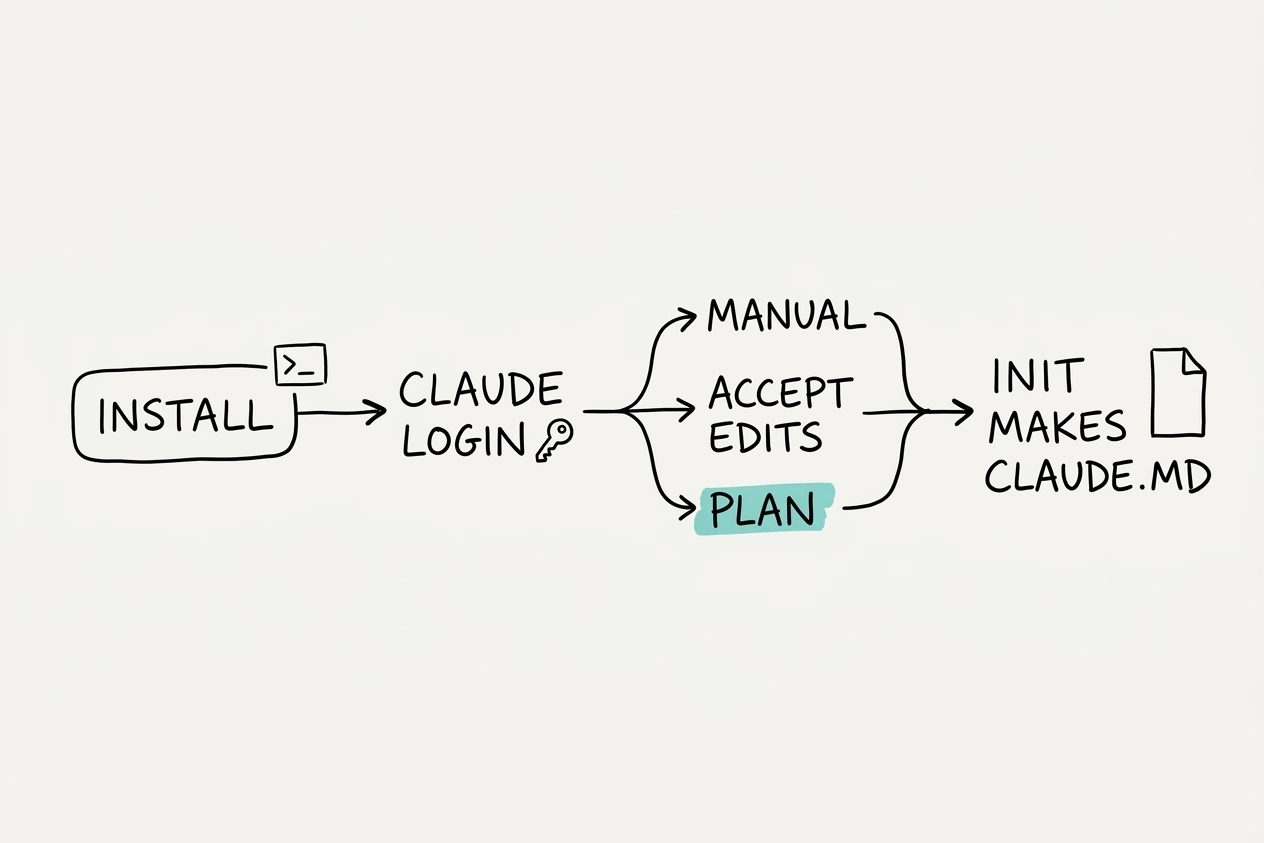
The CLI lives in a terminal, inside whichever project directory launched it. Everything below assumes a fresh install and a first run.
1. Install with the one-line script, or your package manager#
Anthropic ships four install paths. The native installer needs nothing else on the machine first; Homebrew, WinGet, and npm all work too, provided Node 22 or newer is already there for the npm route. Whichever path gets picked, claude --version confirms it landed.
curl -fsSL https://claude.ai/install.sh | bash
claude --version- Native installer, one curl command on macOS, Linux, and WSL, PowerShell on Windows
- Homebrew,
brew install --cask claude-code - WinGet,
winget install Anthropic.ClaudeCode - npm,
npm install -g @anthropic-ai/claude-code, needs Node 22 or newer
2. Run claude and let it walk you through login#
The first claude command opens an interactive session and asks for a browser login unless an API key is already set as an environment variable. Credentials are stored after that, so this only happens once. A Pro, Max, Team, Enterprise, or Console account is required. The free claude.ai plan does not unlock the CLI.
3. Cycle into Plan mode before your first edit#
Press Shift+Tab twice and Claude stops editing anything. It still reads files and runs commands to explore, but every change waits for a plan you approve first. Anthropic's own Claude Code team recommends exactly this move, in a public thread on getting more out of the tool, going back and forth on the plan before letting Claude execute. It costs a minute and saves the rewrite.
4. Run /init before you do anything else#
/init reads the codebase and writes a starting CLAUDE.md, the file Claude reads at the start of every session for build commands, conventions, and layout. Running it takes thirty seconds. Skipping it means re-explaining the same project facts every session, the exact problem CLAUDE.md exists to solve.
5. Learn the three-mode cycle, not all six#
Six permission modes exist, but Shift+Tab only cycles through three by default. Manual reads without asking and prompts for everything else. acceptEdits adds file edits and safe filesystem commands like mkdir and mv. Plan adds research without touching source. The other three modes need an eligible account or an explicit flag, so they are not a first-session concern.
6. Resume where you left off instead of starting fresh#
claude --continue (or -c) picks the most recent session in the current directory back up. claude --resume (or -r) opens a picker across every past session, and typing /resume does the same thing mid-conversation. A closed terminal does not mean a lost session.
7. Run claude doctor before you ask anyone for help#
claude doctor prints installation and settings diagnostics without starting a session, catching a bad config file or a broken install before it wastes anyone else's time. A thirty-second check beats posting a stack trace to a forum and waiting.
Past the first session, a deeper set of CLI tips covers hooks and custom slash commands worth growing into.
Claude Desktop#
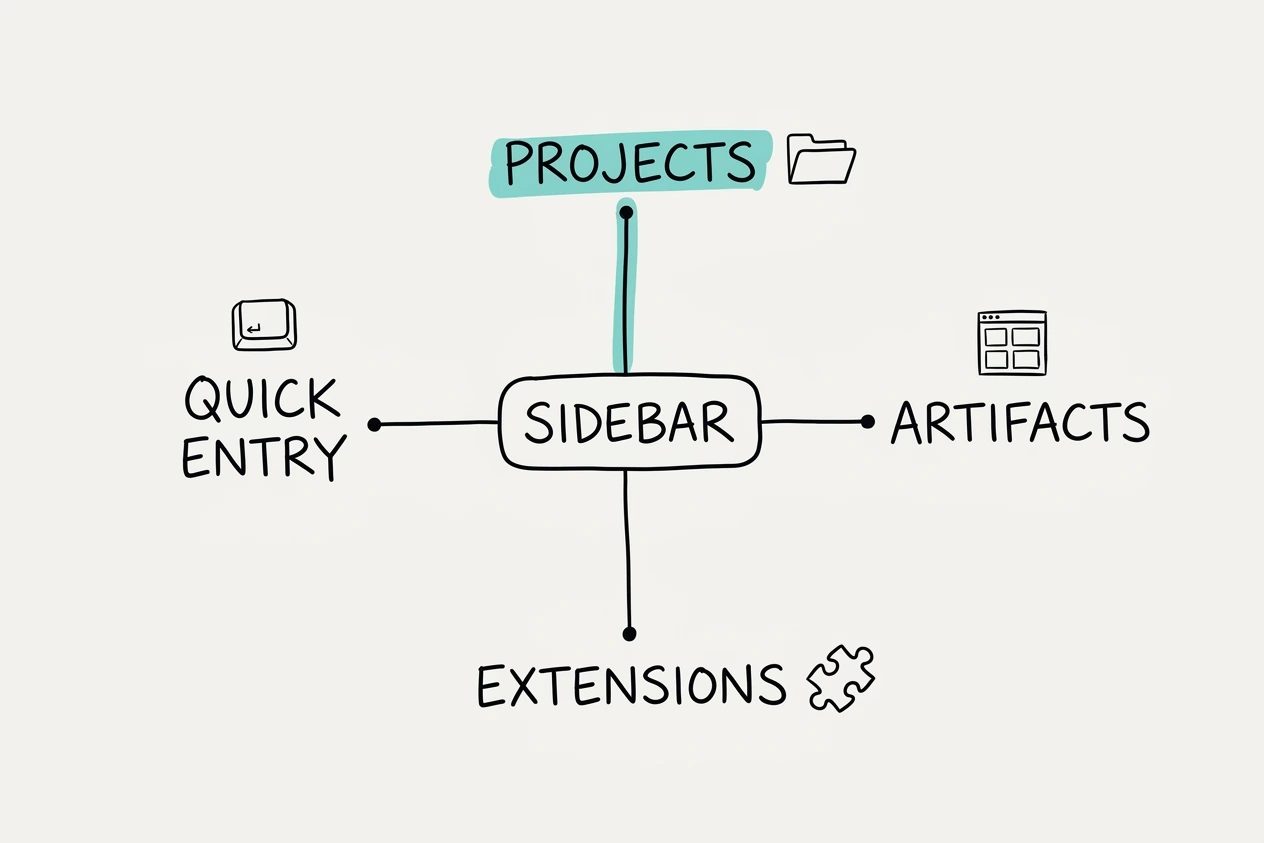
Desktop is the chat app, not the terminal. Everything below lives behind menus rather than flags.
- Projects, a persistent workspace with its own knowledge base
- Artifacts, an auto-triggered panel for anything substantial
- Extensions, one-click MCP connector installs
- Quick Entry, Mac only, double-tap the Option key
8. Start a Project instead of a bare chat#
Projects are self-contained workspaces with their own chat histories and knowledge bases. Upload the documents that matter once, set instructions once, and every chat inside that project inherits both. A bare chat still keeps its own history, it just cannot reuse what a Project already has on hand.
9. Let Artifacts happen instead of hunting for a button#
Claude creates an Artifact automatically once a response gets substantial, generally past fifteen lines of code, a document, or a diagram. It opens in its own panel with a live preview and a toggle back to source. There is usually no menu item to find. Asking for something big enough is what triggers it most of the time.
10. Install one connector from Settings > Extensions#
Settings, then Extensions, then Browse extensions gets to a directory of Anthropic-reviewed tools. Clicking Install on one needs no JSON, no config file, and no restart. That is a different experience from the CLI's .mcp.json route, and it is the reason Desktop is the easier place to try a first MCP connector.
11. Turn on Quick Entry if you're on a Mac#
Quick Entry opens Claude from inside any other app with a double-tap of the Option key. It's a small feature, but skipping the switch to a browser tab or a dock icon adds up over a real workday. Quick Entry itself is currently available on Mac.
Starter questions
Neither replaces the other. The CLI is deliberate work in a specific project directory, while Desktop covers Projects, Artifacts, and connectors for everything that isn't a terminal session. A developer working in one repo all day gets more from the CLI's permission modes and CLAUDE.md; someone gathering research, drafting documents, or triaging files gets more from a Desktop Project.
asked on news.ycombinator.com ↗That is the CLI's default mode, labeled Manual in the UI, and it is deliberate. Reads run without asking. Everything else waits for approval before it happens. It feels slow for the first few edits. Switching to acceptEdits mode with one Shift+Tab press removes the prompt for file edits and common filesystem commands while keeping the review step for anything riskier.
asked on code.claude.com ↗Not for the common path. Browsing Settings, then Extensions, then installing an Anthropic-reviewed tool is a click, not a JSON edit. Custom or self-built MCP servers still go through the Extension Developer flow, but that is not a day-one move.
asked on support.claude.com ↗Working an existing codebase points at /init plus Plan mode. Recurring non-code work, research, drafts, the same client folder, points at a Desktop Project. A genuine one-off does not need either. Pick the one that matches what's actually in front of you.