
Add WebMCP so ChatGPT can use your site without clicking around
August 29, 2026

People still ask what is WebMCP as if it were another server to install, when it is a page-side API that lets a website register tools an agent can call on the open tab. ChatGPT Work and Codex now pick those tools up in the desktop built-in browser, under the name Site tools. The trap is the older writeups that still tell you to call navigator.modelContext.registerTool, plus the HTML form attributes Chrome documents as the easy path. ChatGPT's Site tools docs use document.modelContext.registerTool on the top-level page, and they ignore the declarative form path. Ship the wrong surface and the arrow stays empty. The model goes back to clicking.
What is WebMCP#
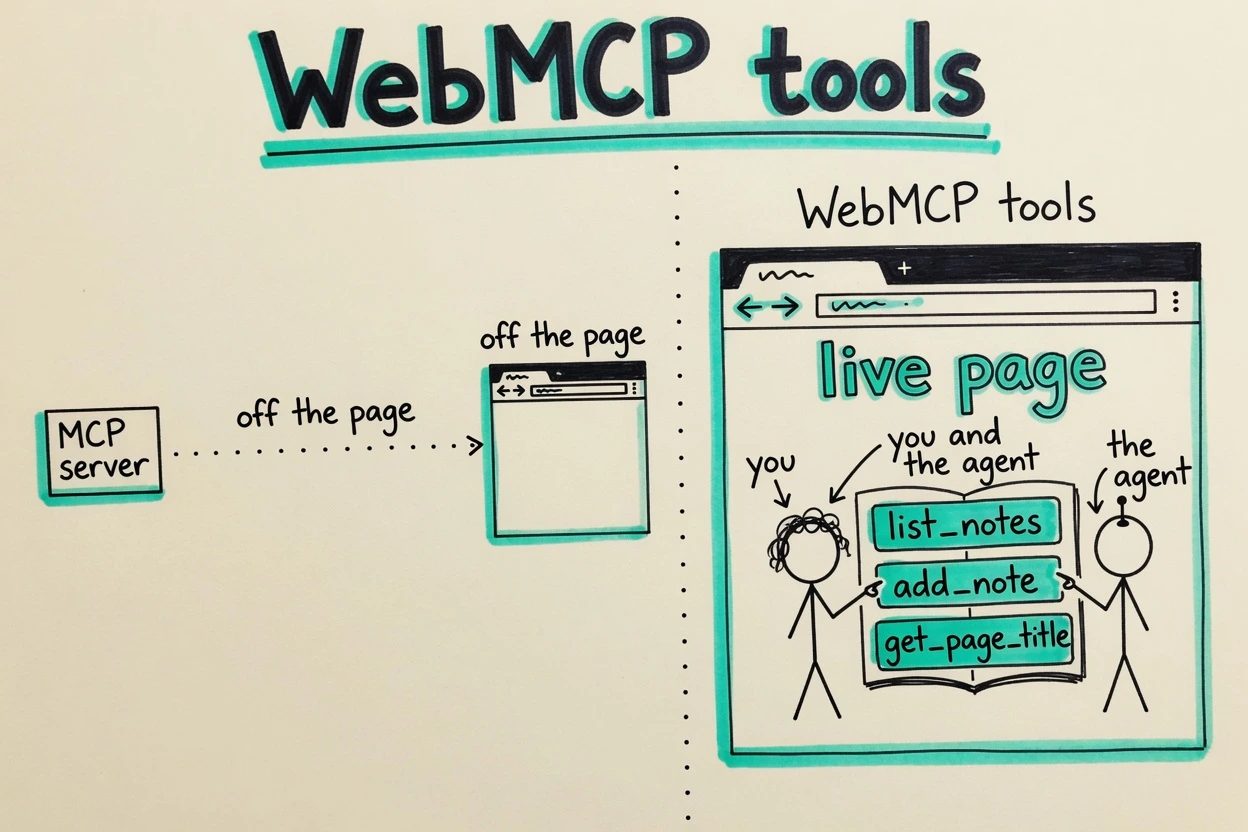
WebMCP is a proposed browser API that lets a page expose JavaScript functions as tools, each with a name, a description, and a JSON Schema for input, so an agent can call them instead of scraping the DOM. The WebMCP specification is a draft from the Web Machine Learning Community Group rather than a W3C Standard, and ChatGPT's implementation of that draft is Site tools.
That is a different job from MCP, which connects an AI application to a local or remote server whose tools can work with no webpage open. WebMCP tools live on the page you already have open, in the signed-in session you already have, which is why ChatGPT's docs talk about editing a canvas or reading a dashboard together. A site can ship both. This post is the page-side path.
The weekly digest for August 24 through 28 is the reason this how-to exists now, because ChatGPT's what's-new notes say Work and Codex can use actions a website offers in the desktop app's built-in browser. An earlier WebMCP post on this site covered the protocol as a research object, and this one leaves you with a page that actually registers a tool.
What you need before the first tool#
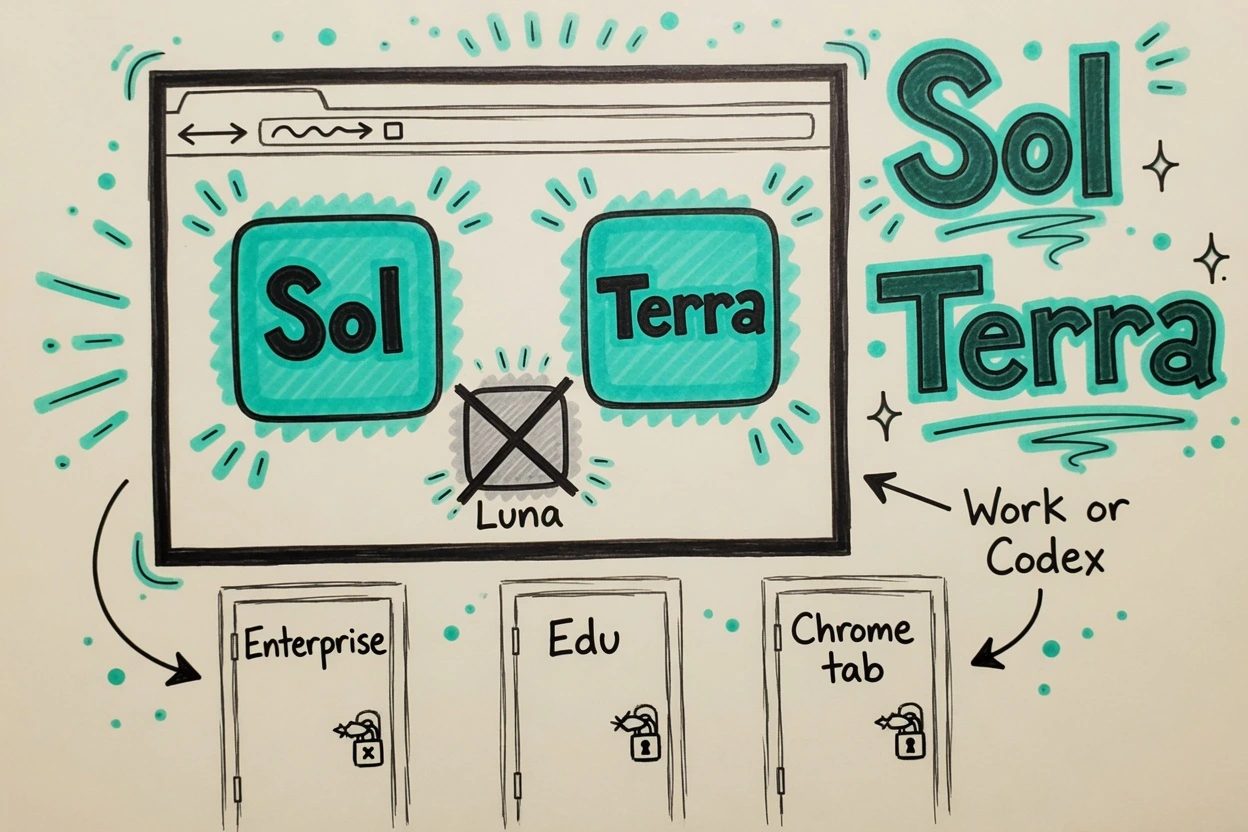
Site tools are picky about the surface because they run in the built-in browser inside the ChatGPT desktop app, for ChatGPT Work and Codex, and they want GPT-5.6 Sol or GPT-5.6 Terra. GPT-5.6 Luna currently has WebMCP disabled, and Enterprise and Edu workspaces do not get them at all. Availability still depends on rollout and on whether the current page registered anything.
OpenAI's help article is blunt about Chrome, because no separate MCP connection is required and Site tools are not available in Chrome at all. The ChatGPT Chrome extension can still click around, but it will not discover registerTool.
Chrome can still help you debug the page itself. Chrome's WebMCP docs turn the API on locally at chrome://flags/#enable-webmcp-testing, and the origin trial starts at Chrome 149. A stock Chrome 147 tab on this machine had no document.modelContext at all, which is why the sample below feature-detects before it registers. The human form has to keep working when the API is missing.
- Latest ChatGPT desktop app, Work or Codex, GPT-5.6 Sol or Terra
- Not Luna, not Enterprise, not Edu, not a regular Chrome tab
- A page you control, served over https or localhost, with JavaScript in the top-level document
- An operation the UI already runs, so the tool is wrapping real logic instead of inventing a new backend
How to use WebMCP#
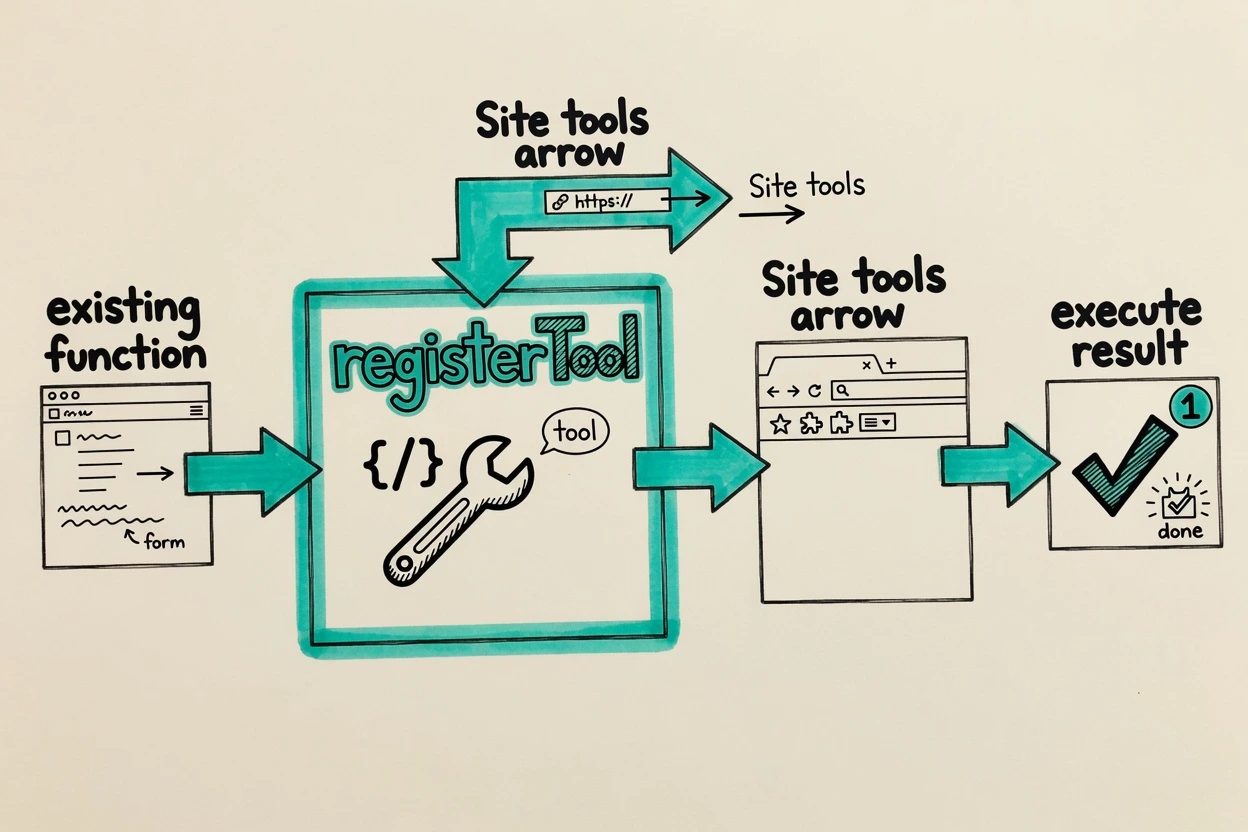
The official advice is to start from an operation the app already supports, then register a tool that calls that same function, whether that is a dashboard date range, a document comment, or a note on a list. The walkthrough below uses a tiny notes page because the form is the existing operation, and add_note is that form wearing a schema, so you can paste the same pattern onto whatever your app already does.
1. Start from a function the UI already runs#
Do not invent a tool the interface cannot perform. If the page cannot add a note, add_note is a lie with a JSON Schema. The notes page keeps an array, renders it, and shares one addNote helper with both the form submit handler and the tool's execute callback, so the agent and the person hit the same function and a failed validation fails for both.
const notes = [];

function addNote(text) {
  const trimmed = String(text || "").trim();
  if (!trimmed) throw new Error("Note text is empty");
  if (trimmed.length > 120) throw new Error("Note text is longer than 120 characters");
  notes.push(trimmed);
  render();
  return { ok: true, count: notes.length, last: trimmed };
}

form.addEventListener("submit", (event) => {
  event.preventDefault();
  const result = addNote(input.value);
  input.value = "";
  statusEl.textContent = "UI added note. count " + result.count;
});
Checkpoint by submitting buy milk from the form, because the list should show one item and the status line should read UI added note. count 1. That check ran on this page in Chrome 147 before any tool registered, which is the point of starting with the UI.
2. Feature-detect, then register on document.modelContext#
April-era posts and a few vendor writeups still call navigator.modelContext.registerTool, but the live spec hangs the API on document.modelContext and ChatGPT's sample does the same. If you copy the navigator spelling into a Site tools page, you are registering against an object that is not there, so feature-detect the function before you register.
async function registerSiteTools() {
  if (typeof document.modelContext?.registerTool !== "function") {
    statusEl.textContent =
      "document.modelContext.registerTool is missing on this browser";
    return;
  }

  await document.modelContext.registerTool({
    name: "list_notes",
    description: "List the notes already on this page.",
    inputSchema: {
      type: "object",
      properties: {},
      additionalProperties: false,
    },
    annotations: { readOnlyHint: true },
    execute: async () => ({ notes: notes.slice(), count: notes.length }),
  });

  await document.modelContext.registerTool({
    name: "add_note",
    description: "Add one short note to the list already on this page.",
    inputSchema: {
      type: "object",
      properties: {
        text: {
          type: "string",
          description: "The note to add, 1 to 120 characters.",
        },
      },
      required: ["text"],
      additionalProperties: false,
    },
    annotations: { readOnlyHint: false },
    execute: async ({ text }) => {
      const result = addNote(text);
      statusEl.textContent =
        "Tool added note. count " + result.count + ". last " + result.last;
      return result;
    },
  });
}

registerSiteTools().catch((err) => {
  statusEl.textContent = String(err && err.message ? err.message : err);
});
That miss is what Chrome 147 printed on http://127.0.0.1:8765/notes.html, even though localhost was a secure context, because the API was still undefined. The form kept working. The feature-detect writes to a status chip instead of throwing for that reason. In ChatGPT's built-in browser, or in Chrome 149+ with #enable-webmcp-testing, the same check should pass and the two registerTool calls inside registerSiteTools should run.
Names are picky because the spec wants 1 to 128 characters of ASCII letters and digits plus _, -, and .. Registering the same name twice rejects with InvalidStateError, and an empty name or description does the same. Chrome's imperative API unregisters with an AbortSignal if the tool should leave when a component unmounts.
ChatGPT's own read-only sample is even smaller, a get_page_title tool with an empty object schema that returns document.title, so use that if you only need to prove discovery. Use add_note if you want execute to change something you can see on the page.
3. Keep the schema narrow and return a visible result#
ChatGPT's docs say to keep inputs narrow, describe side effects, and return enough information to verify the result. add_note takes one string, refuses an empty value, and returns { ok, count, last }. The status chip on the page repeats that count so you do not have to trust the model's summary. Chrome's tool-security note also asks for readOnlyHint on tools that do not change state, which is why list_notes carries it and add_note does not.
Validate in the function, not only in the schema, because schema constraints help the model pick arguments and they are not a guarantee. The empty-text throw is the thing that stops a junk call, and it is the same throw the form already uses. Chrome's character-budget guidance is worth a glance if a tool starts returning a novel. Keep the payload a receipt. Not a dump.
4. Open the page in ChatGPT's built-in browser#
This step was not run in a ChatGPT desktop session here, so treat it as the official path rather than a screenshot of this machine. Open the built-in browser from the desktop toolbar, load the page, and sign in on the site if the operation needs a session. If the page registered tools, an arrow appears in the address bar, gray when tools are available and blue while ChatGPT is using them.
Ask Work or Codex, on Sol or Terra, to list the notes or add one, then review the website-access prompt and look at the page rather than only the chat. add_note should leave a new list item and a status line that says Tool added note. If the arrow never appears, the next section is the short list of reasons. Tools belong to that page. Close it and they leave.
When the tool never shows up#
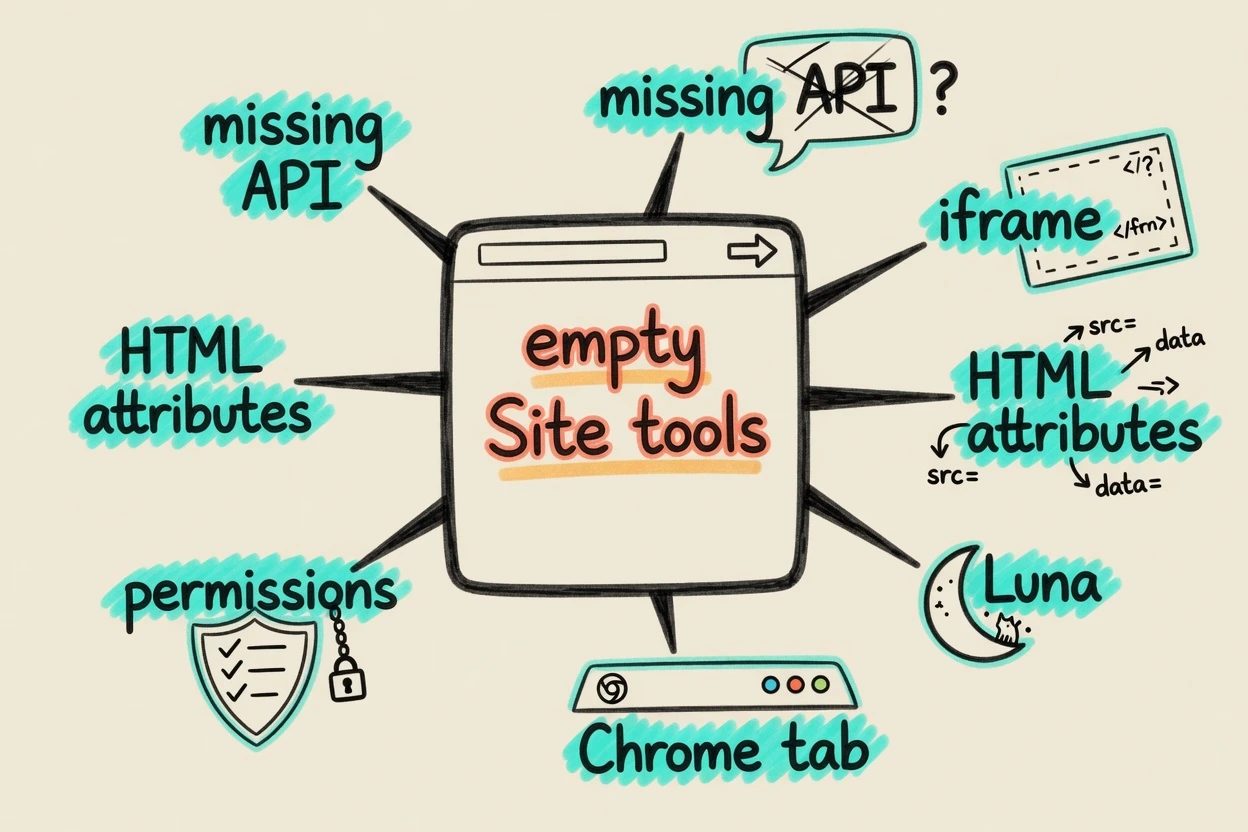
Most empty Site tools lists are not a mystery, because ChatGPT's built-in browser currently supports a subset of WebMCP and the docs name the two holes that eat first-time implementations. HTML form attributes never become Site tools, and tools registered inside iframes are invisible even when they are same-origin, so the JavaScript has to live on the top-level page.
The model picker is the other silent miss, because Luna has WebMCP disabled and a cheap default then looks like a broken page. Enterprise and Edu workspaces do not get Site tools at all, and a regular Chrome tab will not show the arrow either, because Site tools are a ChatGPT desktop browser feature. The page can still register tools for a Chrome origin trial, but ChatGPT will not see them there.
document.modelContext.registerTool is missing on this browsermeans the consumer is not WebMCP-aware. Chrome 147 printed that on localhost. Feature-detect and keep the UI.- Duplicate
namerejects withInvalidStateError. Unregister first, or pick a new name. SecurityErrorwithAccess to the feature "tools" is disallowed by permissions policyisPermissions-Policy: tools=(). Issue 178 on the spec repo recorded that string on Chrome 150.- Declarative
toolnameattributes on a form are a Chrome path. ChatGPT ignores them. - A tool inside an iframe never appears in Site tools.
- GPT-5.6 Luna, Enterprise, Edu, or a Chrome tab instead of the desktop built-in browser.
Help's own FAQ is the other failure people hit, because ChatGPT skips a site tool when the account, the model, or the current page does not match the request, and embedded content does not count. Closing the page drops the tools. Turn the feature off under Settings, Browser, Permissions if you want it gone.
What working looks like#
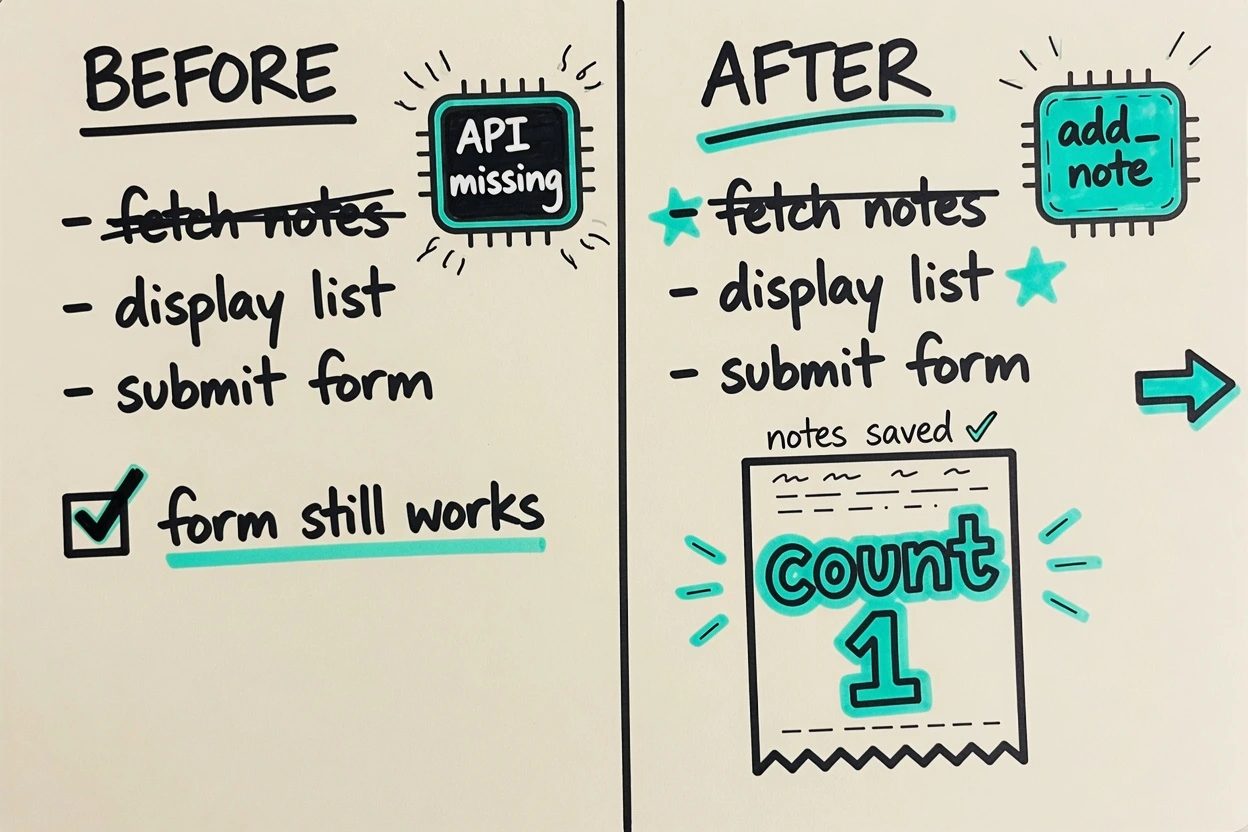
Done is a page whose existing operation still works, plus two registered tools sitting behind a feature-detect. On a browser without WebMCP, the status chip says the API is missing and the form still adds buy milk. On a consumer that has registerTool, list_notes returns the array and add_note returns { ok, count, last } while the list updates. That receipt is the proof. The chat summary is not.
Point ChatGPT Work or Codex at that page in the desktop built-in browser, on Sol or Terra, and look for the address-bar control, because if the arrow is there the page did its job. If you only needed the protocol trivia, the definition is the first section. If you needed ChatGPT to stop clicking around, the register call on document.modelContext is the whole delivery.
Site tools questions people already asked
What is WebMCP?
WebMCP is a proposed web standard that lets a website register JavaScript tools an agent can call on the open page. ChatGPT names that implementation Site tools.
asked on help.openai.com ↗Why didn't ChatGPT use a site tool?
Site tools only appear when the account and model support them and the current page actually registered a matching tool. Luna has WebMCP disabled. Tools that live only in embedded content do not count. ChatGPT can still click around with ordinary browser actions.
asked on help.openai.com ↗Do I need to install a separate MCP server?
No. Site tools are discovered from the page open in the ChatGPT desktop built-in browser. They are not available in Chrome. You still write JavaScript that calls registerTool on that page.
asked on help.openai.com ↗What happens when I close the webpage?
The tools leave with the page. Reopen it if you want ChatGPT to use them again.
asked on help.openai.com ↗Can I turn off site tools?
Yes. In the ChatGPT desktop app, open Browser settings, select Permissions, and turn off Enable site tools.
asked on help.openai.com ↗