
30 tips and tricks with Claude Code CLI on WSL
July 28, 2026

Running Claude Code on WSL has one failure mode that matters more than the other twenty-nine put together, and it never announces itself. On the Windows filesystem the agent does not just get slow. Anthropic's troubleshooting page says search returns fewer matches than actually exist, and claude doctor still reports Search as OK. A 2,000-file benchmark on a WSL2 box explains exactly why that happens, and once it is fixed the remaining twenty-nine are tuning.
Move the repo, or accept a search that lies#
Every WSL guide already tells you to keep code in ~ instead of /mnt/c. None of them say which operations the penalty actually lands on, and that detail is the whole story. An identical tree of 2,000 small files was built on ext4 and on the /mnt/c mount, then walked through the same seven operations three times each.
- 1git status229 x
- 2Read every file116 x
- 3Search contents with ripgrep103 x
- 4Delete the tree73 x
- 5Write 2,000 files65 x
- 6Stat every file8.3 x
- 7List filenames only1.1 x
Read that ranking bottom-up. Listing filenames costs 1.1 times normal. Reading their contents costs 116 times, and git status costs 229. Directory metadata crosses the 9p9P protocolThe network file-sharing protocol WSL2 uses to let Linux reach files on the Windows drive. Every read, write, or stat under /mnt/c travels over it, which is why those operations run far slower than native Linux filesystem calls.See also drvfs, wslpath boundary almost free while file contents crawl, which is a very specific kind of trap for an agent.
Glob returns instantly, so the file list looks healthy. Grep and Read then degrade against the same tree and come back short. Nothing in the transcript distinguishes a real zero-match from a starved one, which is why the fix belongs at the top of the list rather than in a performance appendix.
- Move the repo.
git cloneit into~/projectsand delete the/mnt/ccopy. Microsoft's own guidance is blunt about this, recommending against working across operating systems with your files at all.
- Move the repo.
- Check the mount before trusting a session. A
pwdstarting with/mnt/is the tell, anddf -T .names the filesystem outright,9pfor the Windows mount againstext4for the Linux side.
- Check the mount before trusting a session. A
- Scope every search if a repo genuinely cannot move. Naming a directory or a file type in the prompt cuts the file count the agent has to read, which is the documented workaround and the reason it works.
- Keep builds local even when source has to be shared. Point
node_modules,dist, and scratch directories at ext4 paths, because a coldbun installmeasured 0.81s on ext4 against 2.95s across the boundary.
- Keep builds local even when source has to be shared. Point
- Cross-check one string after a big search on
/mnt/c. Grep for something you are certain exists, and if it comes back empty the result set was starved, not clean.
- Cross-check one string after a big search on
- Reach backwards. Windows applications can open
\\wsl.localhost\Ubuntu\home\you\projectsdirectly, so keeping the repo on Linux costs your Windows editor nothing.
- Reach backwards. Windows applications can open
Size the VM before you blame the agent#
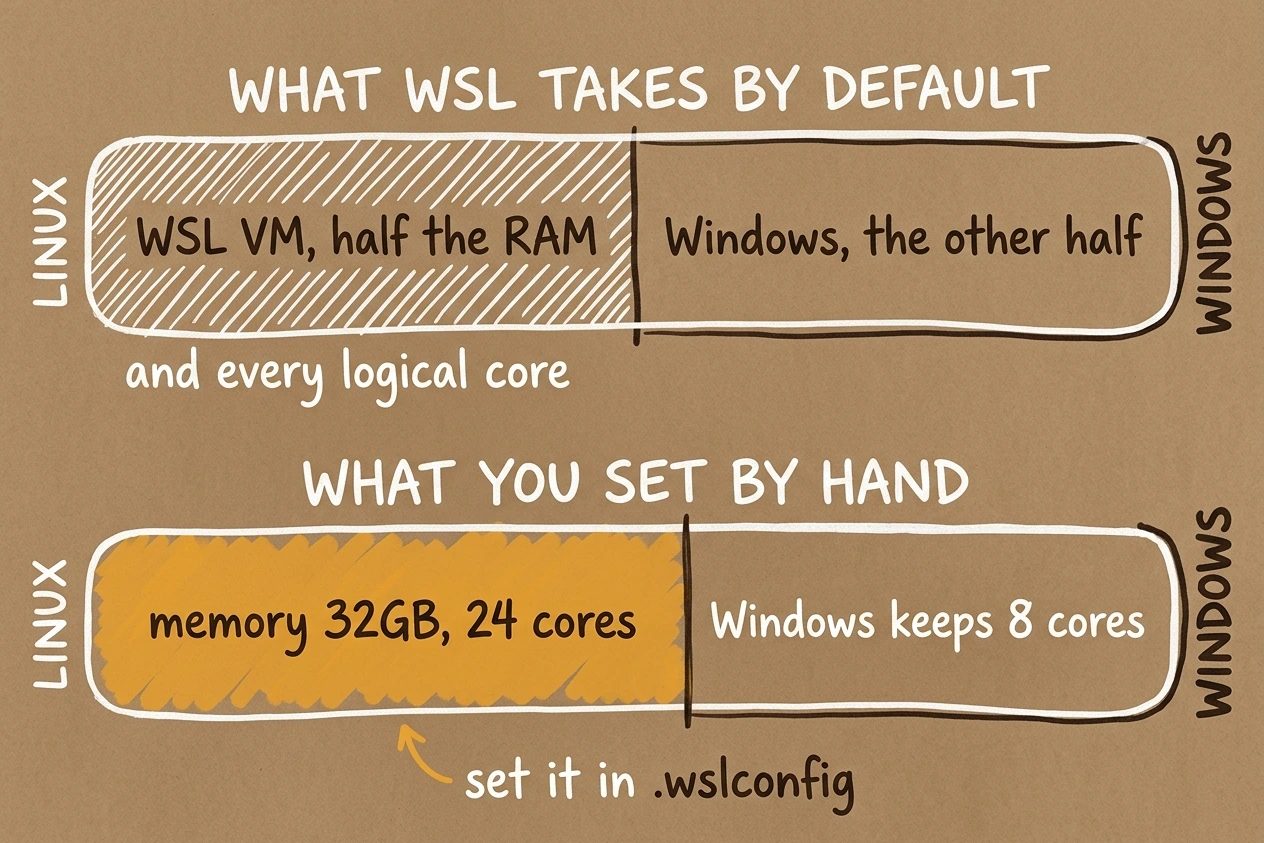
WSL2 runs in a virtual machine whose defaults were chosen before anybody ran a long-lived agent inside one. Microsoft documents memory as defaulting to "50% of total memory on Windows" and processors as "The same number of logical processors on Windows". A four-hour Claude Code session with a dev server, a language server, and a few subagents will find both edges.
All of these live in %UserProfile%\.wslconfig on the Windows side, not inside the distro.
[wsl2]
memory=32GB
swap=16GB
processors=24
networkingMode=mirrored

[experimental]
autoMemoryReclaim=gradual
sparseVhd=true- Set memory explicitly. Half the host sounds generous until Windows starts swapping underneath you. A hard cap that leaves Windows a comfortable margin turns a frozen desktop into a clean OOM kill inside the VM.
- Give real swap. With swap present the kernel reclaims and kills quickly. With swap at zero, a runaway build thrashes the whole VM and takes your session with it.
- Leave cores free. Parallel subagent fan-out is sized against the cores the VM can see, not the cores your CPU has, so
processorsis the knob that decides how wide the agent will actually go.
- Leave cores free. Parallel subagent fan-out is sized against the cores the VM can see, not the cores your CPU has, so
- Reclaim gradually. The default is
dropCache, which reclaims immediately.gradualhands idle RAM back slowly instead, which suits a session that goes quiet between prompts.
- Reclaim gradually. The default is
- Turn on sparseVhd. A WSL virtual disk grows and never shrinks on its own, so a few months of
node_moduleschurn quietly eats tens of gigabytes of your Windows drive.
- Turn on sparseVhd. A WSL virtual disk grows and never shrinks on its own, so a few months of
- Wait 8 seconds. Edits do nothing until the VM fully stops, which Microsoft documents as taking "about 8 seconds after closing ALL instances of the distribution shell". Run
wsl --shutdownfrom PowerShell and wait before relaunching.
- Wait 8 seconds. Edits do nothing until the VM fully stops, which Microsoft documents as taking "about 8 seconds after closing ALL instances of the distribution shell". Run
The Windows PATH tax, measured#
One developer described Claude Code on WSL as borderline unusable, with "freezing for several seconds at startup, hanging before every / command, and even stuttering while typing". That report shipped without timings, so here are some.
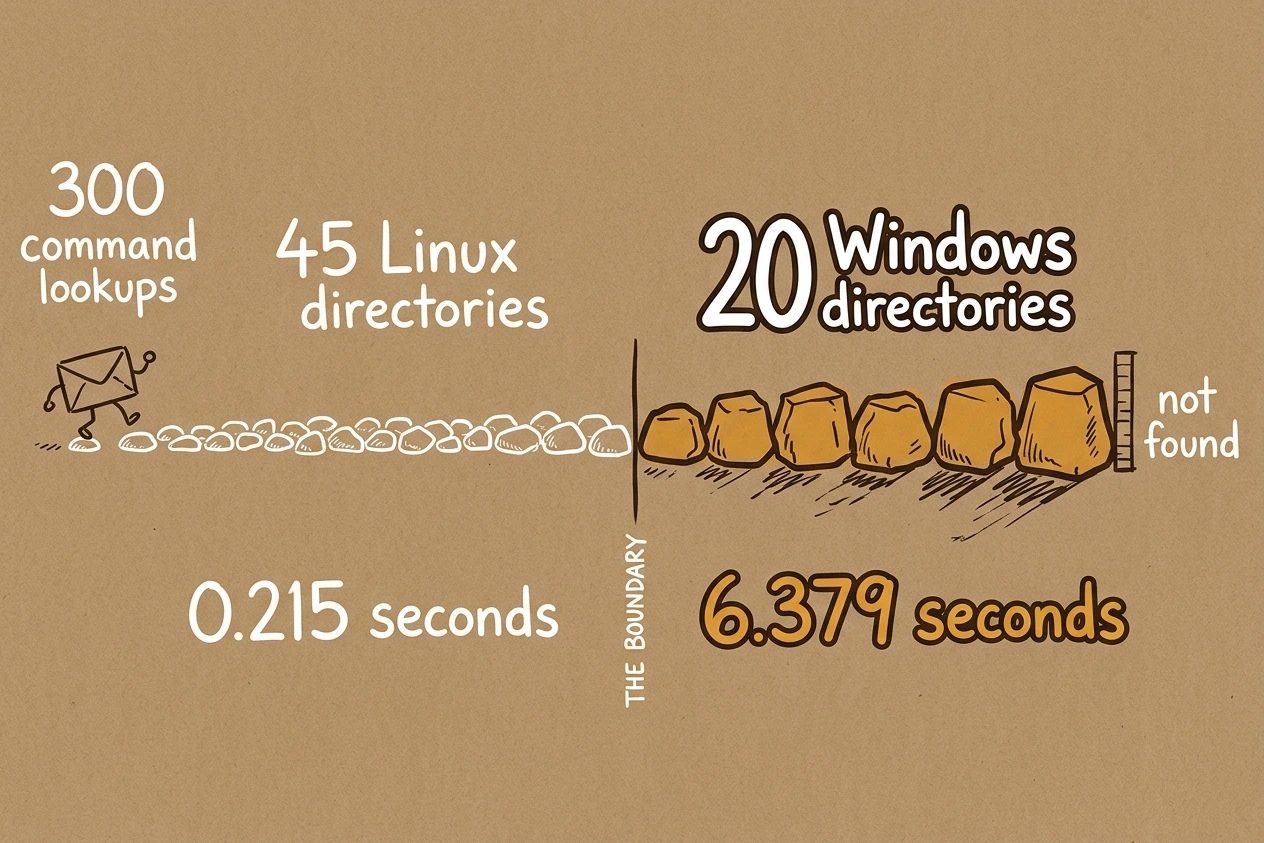
WSL imports the Windows PATHPATHThe shell environment variable listing directories searched in order when a command name is typed, so every lookup walks each entry until one matches.See also WSLENV, appendWindowsPath, command lookup by default, which on a normal machine adds around twenty /mnt/c directories to every lookup. Three hundred failed command -v lookups took 6.379 seconds against that default PATH of 65 entries. With the twenty Windows entries stripped out, the same three hundred lookups took 0.215 seconds.
That is roughly 21 milliseconds burned every time something probes for a binary that is not there, and entry count alone does not explain it. Going from 65 entries to 45 is a factor of 1.4. The measured gap is a factor of 30, and the difference is that each Windows entry is a round trip across the same boundary the file benchmark punished.
- Measure yours first.
echo $PATH | tr ':' '\n' | grep -c '^/mnt/c'tells you how many Windows directories every command miss is walking. Under five and this section is not your problem.
- Measure yours first.
- Trim, not amputate. Anthropic's docs warn against
appendWindowsPath = falsebecause it "breaks the ability to call Windows executables from WSL", and that warning is correct for anyone who flips the switch and stops there.
- Trim, not amputate. Anthropic's docs warn against
- Re-add what matters. Disable the blanket import, then put
System32and whatever else you genuinely call back on the path by hand. Interop keeps working and the other seventeen directories stop costing you.
- Re-add what matters. Disable the blanket import, then put
- Avoid hot paths. A
cmd.exespawn measured 34 milliseconds against 1.1 milliseconds for/bin/true. A status line refreshing every second, or a hook on every tool call, will feel that.
- Avoid hot paths. A
- Guard your profile. Every Bash call, hook, and status line spawns a shell that re-reads your profile, and on WSL that means re-walking the Windows PATH each time. Claude Code sets
CLAUDECODE=1in those subprocesses, so gate the expensive parts of~/.bashrcon it.
- Guard your profile. Every Bash call, hook, and status line spawns a shell that re-reads your profile, and on WSL that means re-walking the Windows PATH each time. Claude Code sets
- Use WSLENV. Sharing a Windows environment variable across the boundary costs nothing, while shelling out to PowerShell to read the same value costs a process spawn every time.
[interop]
enabled=true
appendWindowsPath=false
Then add back exactly what you call, in ~/.bashrc, and nothing else.
export PATH="$PATH:/mnt/c/Windows/System32"Install and login break here first#
Most WSL install failures are the same failure wearing different error messages. A Windows binary won the PATH race against its Linux counterpart, or a network callback could not find its way back across the VM boundary. Anthropic's install troubleshooting page documents five of them specifically for WSL, and the error strings are worth memorising.
- Install the binary.
curl -fsSL https://claude.ai/install.sh | bashdrops an ELF into~/.local/share/claude/versions/and sidesteps the entire npm and Node question. Cold start measured 93 milliseconds.
- Install the binary.
- Exec format error.
cannot execute binary file: Exec format erroris a known native-binary regression on WSL1. Convert withwsl --set-version <DistroName> 2from PowerShell rather than working around it.
- Exec format error.
- Check which node. When
claudeprintsexec: node: not found, runwhich node. A path starting with/mnt/c/means WSL borrowed the Windows install, and the fix is a Linux Node from your package manager.
- Check which node. When
- Tell npm linux. If you install through npm anyway,
npm config set os linuxfirst, thennpm install -g @anthropic-ai/claude-code --force, and never withsudo.
- Tell npm linux. If you install through npm anyway,
- Pick one nvm. With nvm installed on both sides, the Windows copy wins the PATH race and version switches inside WSL silently do nothing. Load the Linux
nvm.shfrom your shell profile explicitly.
- Pick one nvm. With nvm installed on both sides, the Windows copy wins the PATH race and version switches inside WSL silently do nothing. Load the Linux
- Expect a code. The OAuth redirect cannot reach a callback server inside the VM, so the browser shows a code instead of bouncing back. Paste it in, and if no browser opens at all, point
BROWSERat your Windows Chrome executable.
- Expect a code. The OAuth redirect cannot reach a callback server inside the VM, so the browser shows a code instead of bouncing back. Paste it in, and if no browser opens at all, point
Windows Terminal often refuses a normal paste into that login prompt. Right click or Shift+Insert usually gets the code in, and claude auth login reads the same code from standard input if the interactive prompt keeps ignoring you.
Interop tricks worth keeping on a hotkey#
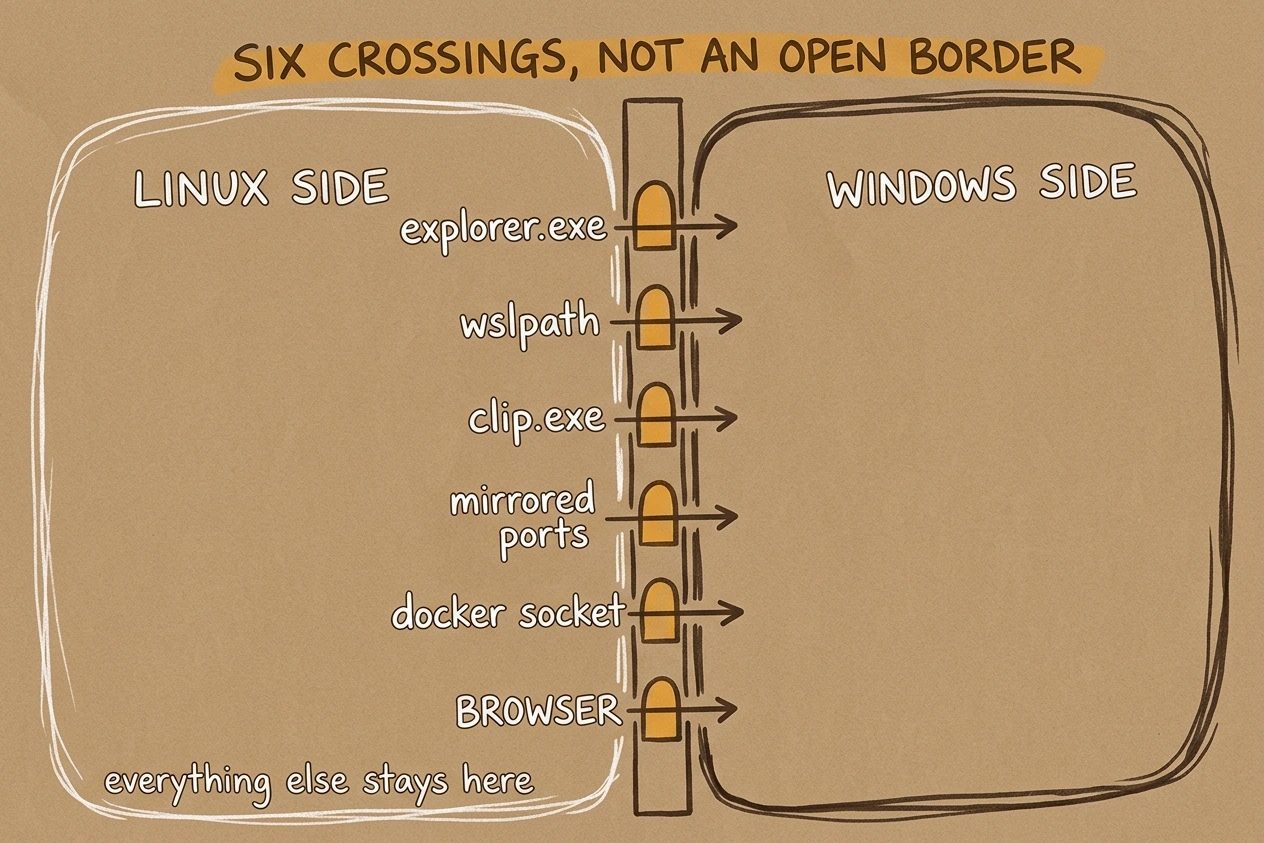
Everything above treats the Windows boundary as a cost. It is also the reason WSL beats a plain Linux box for this work, as long as the crossings stay deliberate and few, which is what the gates above are counting. These last six are worth teaching Claude Code about explicitly, because it will not reach for them on its own.
- explorer.exe dot. Running
explorer.exe .opens the current WSL directory in File Explorer, which beats typing a UNC path when you need to drag a file into a Windows app.
- explorer.exe dot. Running
- wslpath both ways.
wslpath -w .prints the Windows form of a Linux path andwslpath -uconverts back. Hand the output to a Windows tool instead of guessing at backslashes.
- wslpath both ways.
- Pipe to clip.exe. Ending a command with
| clip.exeputs its output straight on the Windows clipboard, which is the fastest way to move a stack trace out of the terminal.
- Pipe to clip.exe. Ending a command with
- Mirror the network. With
networkingMode=mirroreda dev server bound inside WSL is reachable from Windows and from other machines on the LAN without port forwarding gymnastics.
- Mirror the network. With
- Enable Docker integration. Enabling WSL integration gives you a working
dockercommand with no Linux daemon to babysit, and the socket crosses the boundary rather than the images.
- Enable Docker integration. Enabling WSL integration gives you a working
- Audit search itself. Since
claude doctorreports Search as OK even while it is coming back short, treat its verdict as a liveness check. Install your distro'sripgrepand setUSE_BUILTIN_RIPGREP=0so the Search line names a real binary path you can reason about.
- Audit search itself. Since
The short version#
If the repo lives on /mnt/c, stop reading and move it. Nothing else on this list changes the fact that the agent's picture of your codebase is incomplete and that no warning fires when it is. Everything after that is speed, and speed you can feel.
The tuning still pays. A trimmed PATH takes the stutter out of the slash-command menu, a sized VM stops a long session from taking the desktop down with it, and a handful of interopinteropThe WSL subsystem that lets Linux processes call Windows executables and vice versa, including PATH sharing, clipboard access, and file explorer handoff.See also Docker WSL integration, WSLENV, appendWindowsPath commands turn the Windows side from a tax into a feature. Start with the filesystem though. It is the only one of the thirty that can be wrong rather than merely slow.
Worth pairing with the environment variables that actually matter and the tips that are not WSL specific, both of which assume a setup where search tells the truth.