
Samsung developer mode best settings skip Auto Blocker
August 25, 2026

The samsung developer mode best settings sitting starts with a grey USB debugging toggle, and that grey is Auto Blocker blocking USB commands.
Developer options can already be on. The debugging switch still will not move. Cables and factory resets do not fix a security feature that is doing its job.
Seven taps unhide the menu. Auto Blocker comes off for the sitting. USB debugging comes on. adb devices prints device. When the cable comes out, Auto Blocker goes back on.
Pin the phone and the cable first#
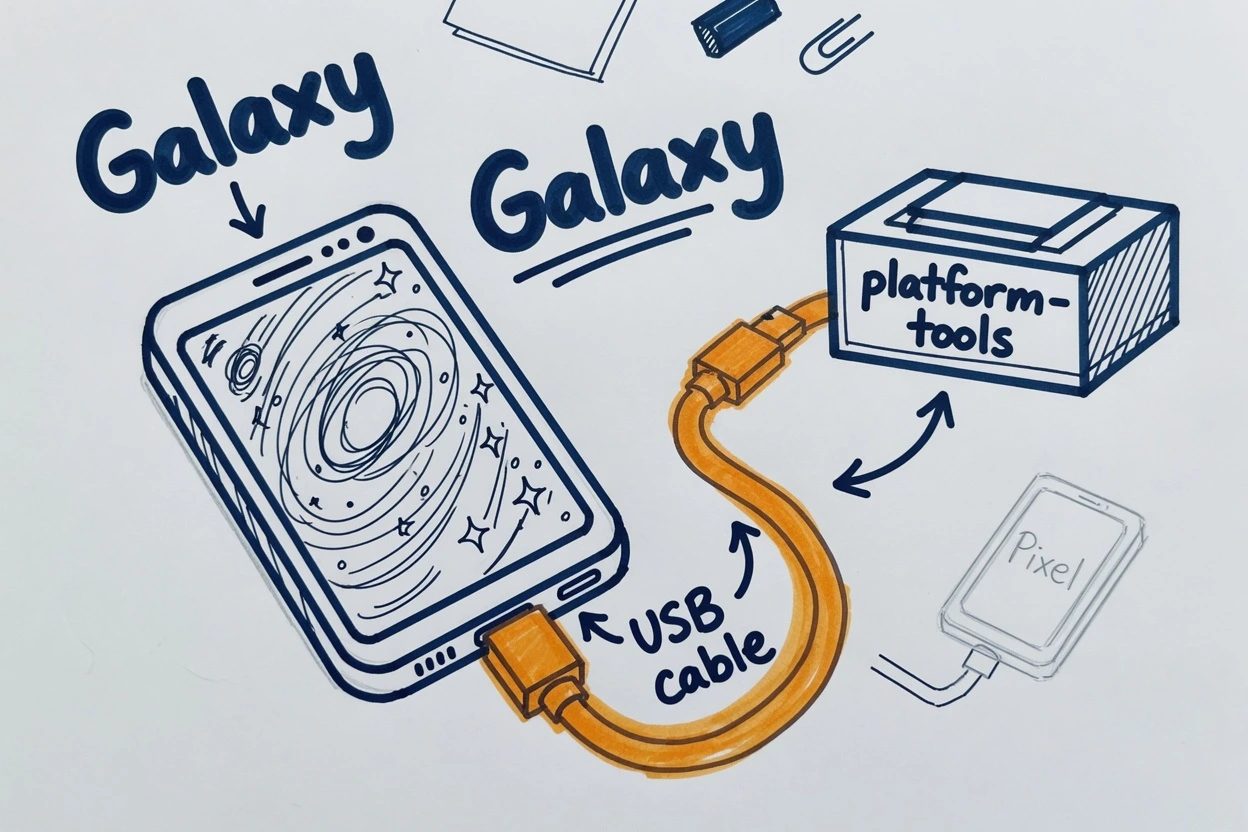
Windows still wants an OEM USB driver. Android's OEM table has a Samsung row. macOS does not. Linux wants the account in the plugdev group. Groups only update on login, so a logout is part of the fix.
- A Galaxy with Auto Blocker, available on compatible One UI 6 and later devices
- Android SDK Platform-Tools on the computer
- A USB cable that carries data, not a charge-only brick
- On Windows, the Samsung row in Android's OEM USB table
This is not a Pixel walkthrough. Pixel is Settings, About phone, Build number. Galaxy S8 and later inserts Software information in the middle. Android's developer options table prints both rows so the extra hop is not a mystery.
Unlock Developer options on the Galaxy#
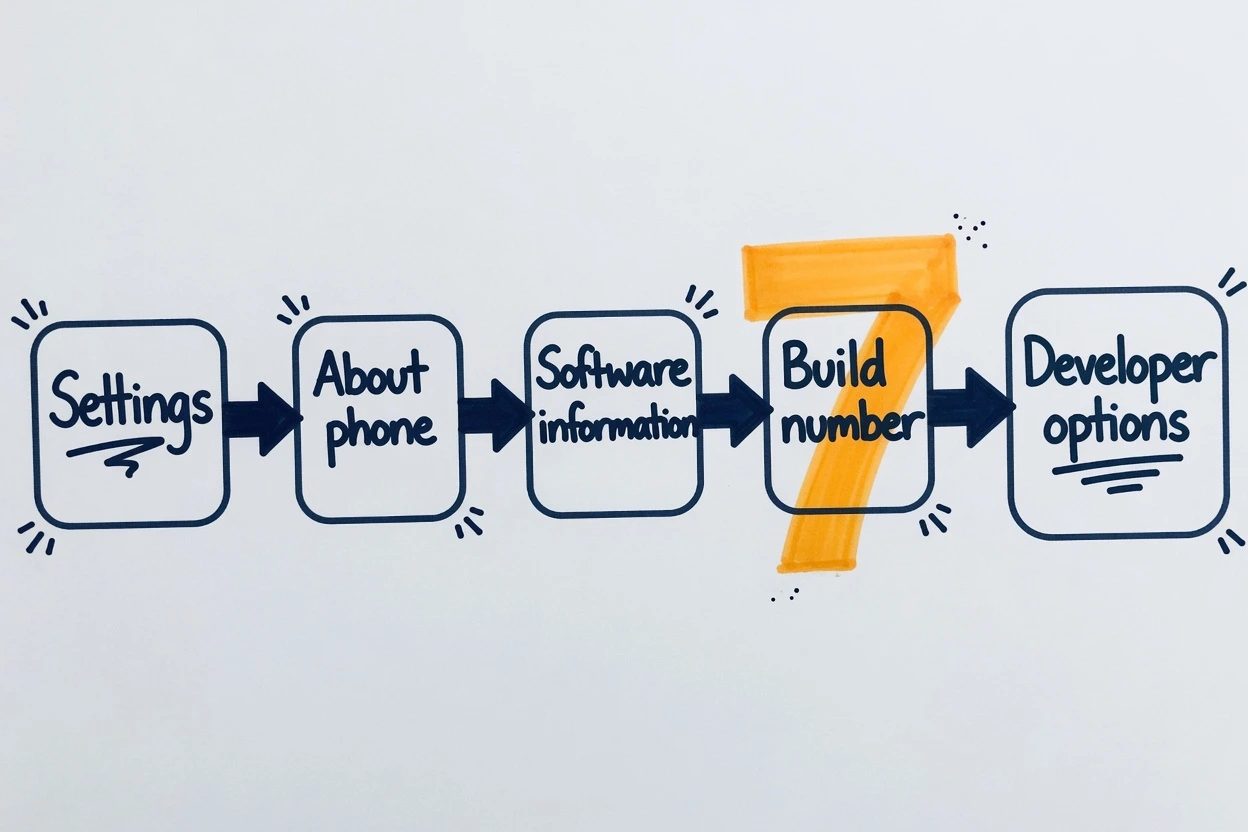
Samsung Developer is four screens, then seven taps on Build number. Samsung US support says the same seven taps, then shrugs that developer options are "not supported" and "may have an effect on your phone's performance." That sentence is legal cover. Keep going.
1. Open Software information, not About phone alone#
Settings, About phone (or About device), Software information, then tap Build number seven times in a row. A lock screen means a PIN, pattern, or password before the menu appears. Developer options lands at the bottom of Settings, and on some firmwares under Settings, General, Developer options.
Look again. Open Settings. Developer options is there. USB debugging may still be grey. That is the next lock, not a failed unlock.
Skip Auto Blocker so USB debugging can move#
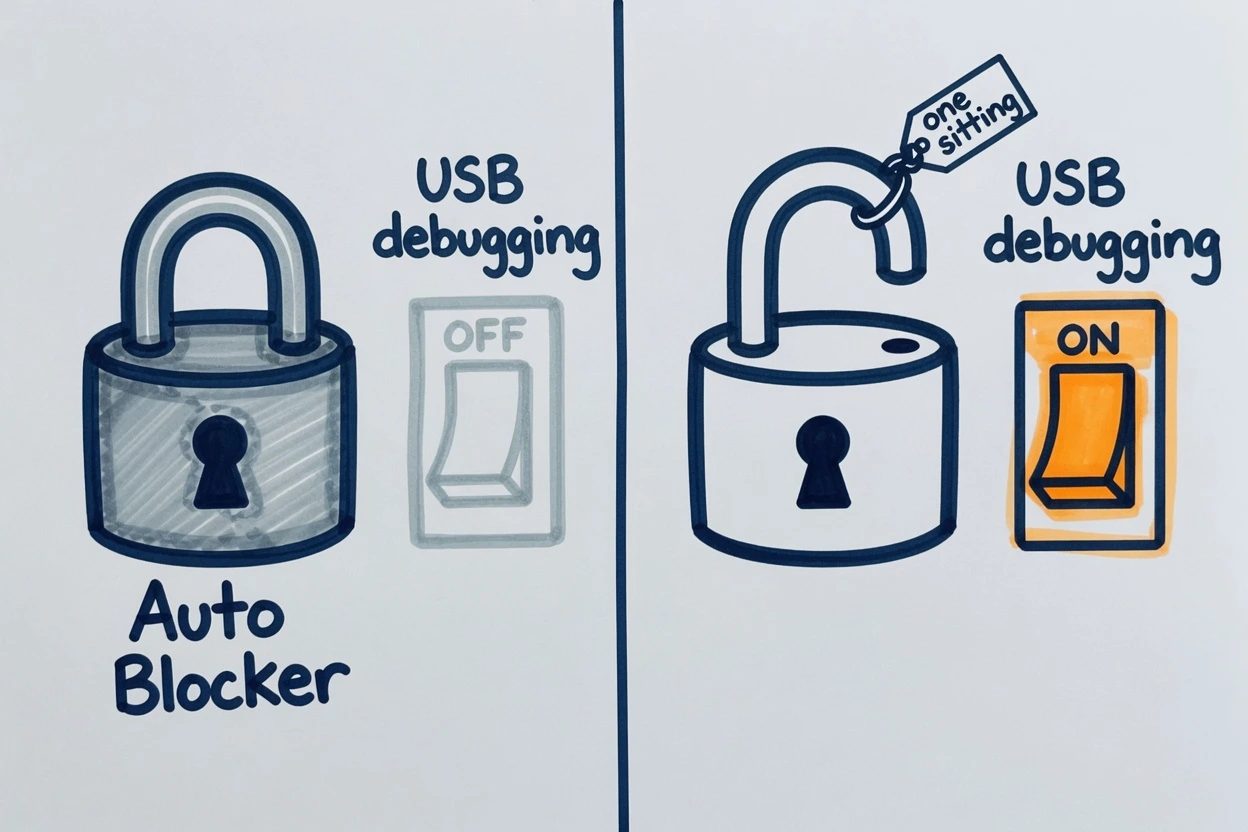
Auto Blocker is a Samsung padlock on the USB port. Samsung's support page names it as USB commands blocked over a cable. It does not print "USB debugging will grey out." The Galaxy does that part for you.
One UI 6 shipped it. Newsroom copy from November 2023 talks about malicious chargers and the airport kiosk. The S23 thread on Samsung Community already solved the grey toggle with three menu names. Settings, Security and privacy, Auto Blocker.
You'll hit this if Developer options is on and the USB switch still looks disabled. That is the whole tell. The phone is not broken. The reserved sign is on.
2. Turn Auto Blocker off for this sitting#
Settings, Security and privacy, Auto Blocker, switch it off. Confirm PIN or biometrics if the phone asks. Go back to Developer options. USB debugging should move.
Samsung's own copy says to keep Auto Blocker enabled. India's support FAQ allows a temporary off for an action you chose. This sitting is that action. It is not a new default.
Maximum restrictions is a nested extra switch under Auto Blocker. If USB is still dead after the main toggle, open that page and check it. Standard Auto Blocker is the common lock. Maximum restrictions is the overbuilt one.
Samsung developer mode best settings the docs actually name#
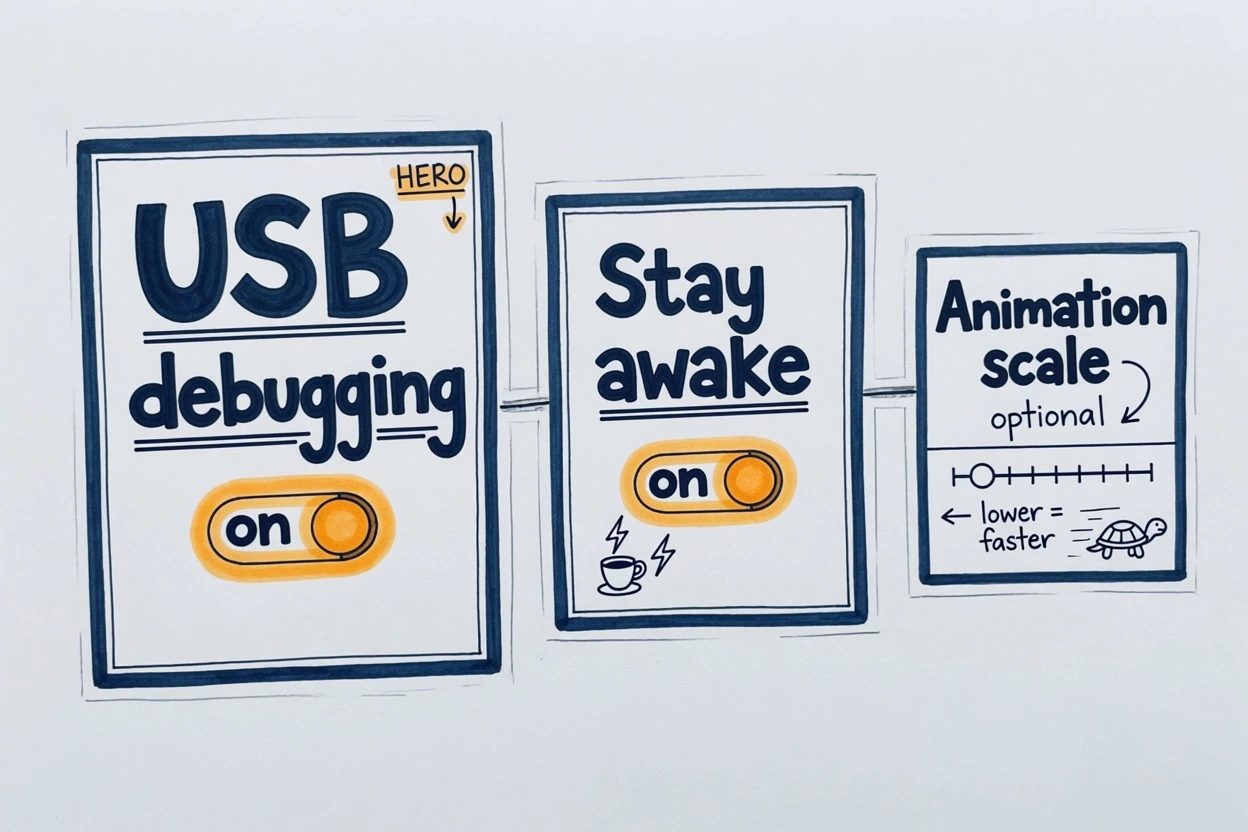
Search results for samsung developer mode best settings will sell OEM unlocking, Don't keep activities, and a 0.5x personality. The samsung developer mode best settings that Android actually documents for this job are shorter.
3. Turn USB debugging on#
Developer options, USB debugging, on. That is the setting ADB needs. Leave Wireless debugging alone until USB already works. Wireless is Android 11 and later, same screen, same Auto Blocker problem, extra pairing ceremony.
The toggle is on. The RSA dialog has not fired yet. That waits for a cable.
4. Stay awake while the cable is in#
Stay awake is a documented Developer option. Screen stays on while the device is plugged in. The RSA prompt cannot hide behind a lock, which is the boring failure that wastes twenty minutes.
5. Drop animation scale only if you are checking UI speed#
Window animation scale and Transition animation scale live under Drawing. Android says a lower scale results in a faster speed so you can check performance. 0.5x is a working value people use. It is not a Samsung blessing, and it does not make adb faster.
Skip this if the job is a device on the bus. Animator duration scale exists in AOSP Settings. Android Studio's public page does not even list it in the Drawing section that shipped. Treat it as optional furniture.
Prove the phone with adb devices#
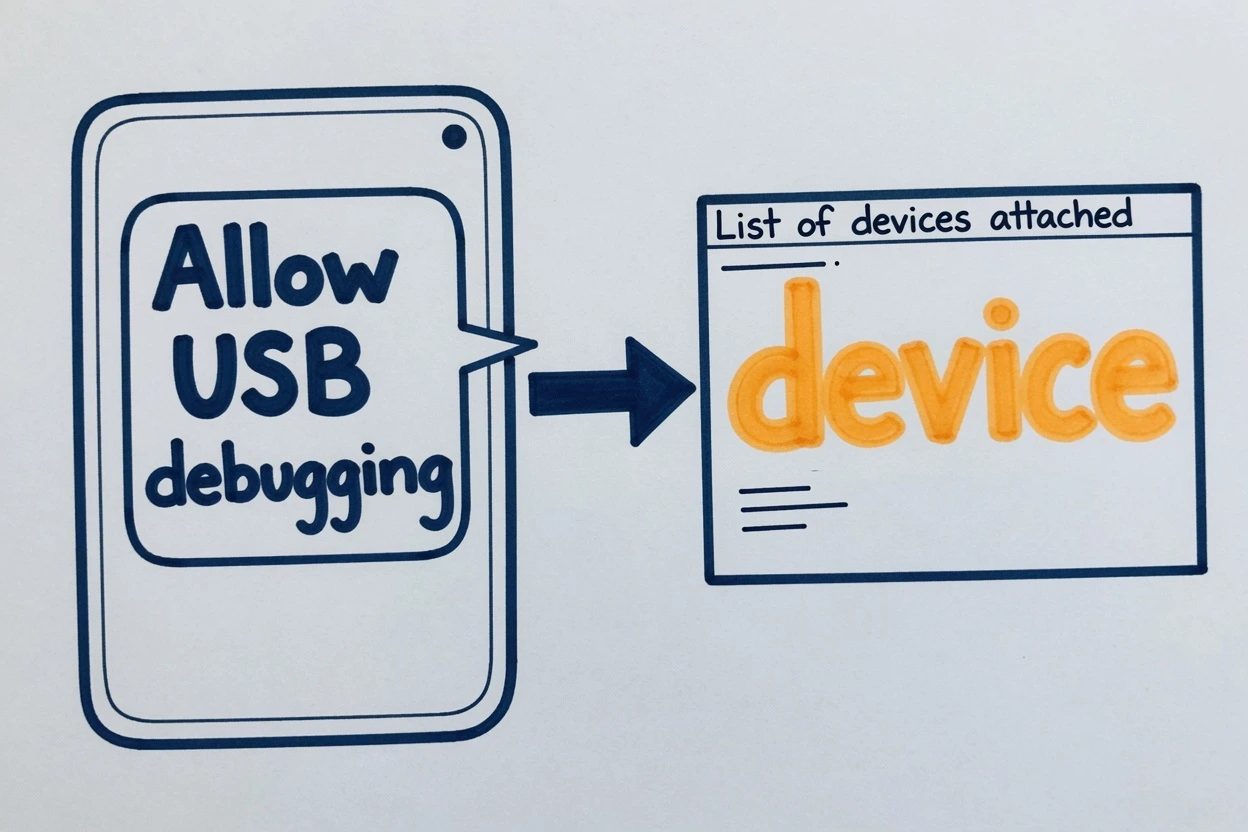
Plug the cable in. If the notification says charging only, switch it to File transfer or MTP. Developer options also has Select USB configuration for the same choice. Then unlock the phone.
6. Plug in, allow the RSA key, then run adb devices#
Android 4.2.2 and later shows a dialog asking whether to accept an RSA key that allows debugging through this computer. Android's adb page is blunt about why. USB debugging cannot run until the device is unlocked and that dialog is acknowledged. Tick Always allow from this computer if this is the daily machine.
adb devicesA working sitting prints List of devices attached, then a serial and the word device. That is the only proof that matters. Empty list means the cable, the driver, or charging-only. A listing that is not device means the RSA dialog is still waiting.
Once the phone is on the bus, the desktop side is its own problem. VS Code's agent host is a process, not a panel you clicked. This sitting stops at device.
When USB debugging is still grey#
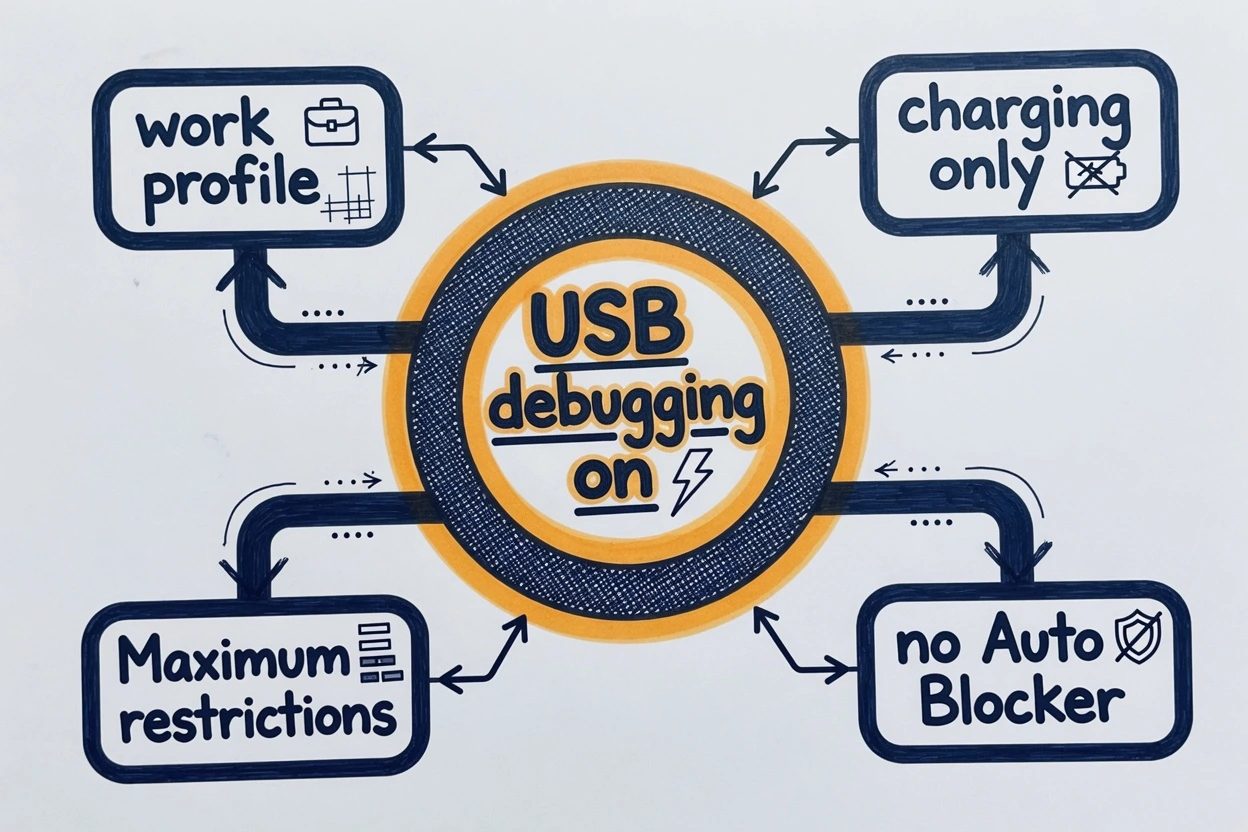
Auto Blocker is the common lock. It is not the only one. Search Settings for Auto Blocker before assuming the phone is special.
- No Auto Blocker menu. Some A-series phones never shipped it. Charging-only, a work profile, or Knox MDM is then the lock.
- Charging only. After USB debugging is on, pick File transfer or MTP so
adbcan see the phone. A greyed toggle is Auto Blocker or a policy, not this. - Maximum restrictions still on under Auto Blocker. Nested switch, easy to miss.
- USB debugging and wireless debugging both grey. Auto Blocker has been reported as the cause. Turn it off for the sitting and prove USB first.
Linux will also print that the user is not in the plugdev group. Android's hardware-device page gives the fix, then a logout, because groups do not update mid-session.
sudo usermod -aG plugdev $LOGNAMEIf adb still stares at a blank list, restart the server and try the cable in another port. adb kill-server then adb start-server then adb devices again. A second cable is cheaper than a second theory.
Grey toggle questions people actually hit
Why is USB debugging grey even after Developer options is on?
On One UI 6 and later, Auto Blocker blocks commands over a USB cable. That is the lock, not a broken Developer options menu. Settings, Security and privacy, Auto Blocker, switch it off for the sitting, then the USB debugging toggle can move.
asked on us.community.samsung.com ↗Can Auto Blocker stay off once adb works?
No. Samsung's support copy says to keep Auto Blocker enabled, and it allows a temporary off only for an action you chose. USB debugging plus a trusted RSA key is a live shell from that computer. Flip Auto Blocker back on when the cable comes out.
asked on samsung.com ↗Does wireless debugging skip Auto Blocker?
No. Wireless debugging is an Android 11 path on the same Developer options screen, and people have reported that toggle greyed when Auto Blocker is on. Get USB working first. Pair over Wi-Fi only after adb devices already lists the phone.
asked on xdaforums.com ↗What if adb devices prints nothing after USB debugging is on?
Unlock the phone and accept the RSA dialog that Android shows from 4.2.2 on. If the cable is charging-only, switch to File transfer or MTP. On Linux, the user has to be in the plugdev group. On Windows, install the OEM USB driver from Android's driver table.
asked on stackoverflow.com ↗What if the Galaxy has no Auto Blocker menu?
Some A-series phones never shipped it. Search Settings for Auto Blocker. A missing menu means a different lock, usually charging-only USB, a work profile, or Knox MDM. Those are not this skip.
asked on youtube.com ↗Samsung developer mode best settings do not stay this way#
The sitting is done when adb devices lists the phone as device. USB debugging can stay on for the week if this computer is trusted. Auto Blocker does not get the same deal.
Samsung's support line is keep Auto Blocker enabled. A trusted RSA key plus USB debugging is a live shell from that computer. You'll ship that sitting into a cafe charger if the padlock stays off, and that is the airport story Samsung already wrote.
Flip Auto Blocker back on. Leave the animation scales alone if they were never the job. The sitting is seven taps, one skipped padlock, USB debugging on, device in the terminal, then the padlock again.
Skip Auto Blocker for the ADB sitting. Turn USB debugging on. Prove it with adb devices. Put Auto Blocker back.